

If you’re using CloudPanel and have ever run into a situation where:
example.comworks perfectly,- DNS records look correct,
- CloudPanel can reach your server,
- but SSL installation for
www.example.comkeeps failing,
then this article may save you hours of frustration.
I recently encountered this issue on multiple websites, including:
In both cases, the root domain worked correctly, but adding SSL for both the root domain and the www version either failed completely or behaved inconsistently.
The Symptoms
Everything appeared to be configured correctly:
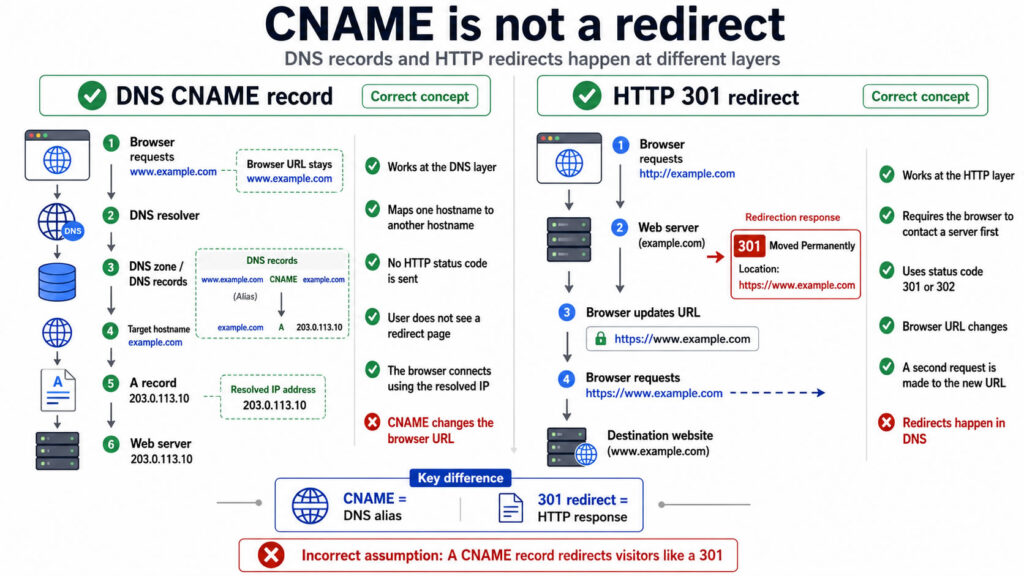
DNS Records
example.com      A       YOUR_SERVER_IP
www.example.com  CNAME   example.com
The root domain loaded successfully.
However:
- SSL issuance would fail when including both domains.
- The www version would not redirect correctly.
- Let’s Encrypt validation would fail.
- CloudPanel would sometimes refuse to issue certificates covering both names.
At first glance, it looks like a DNS issue, but in my experience, DNS was not the problem.
Why This Happens
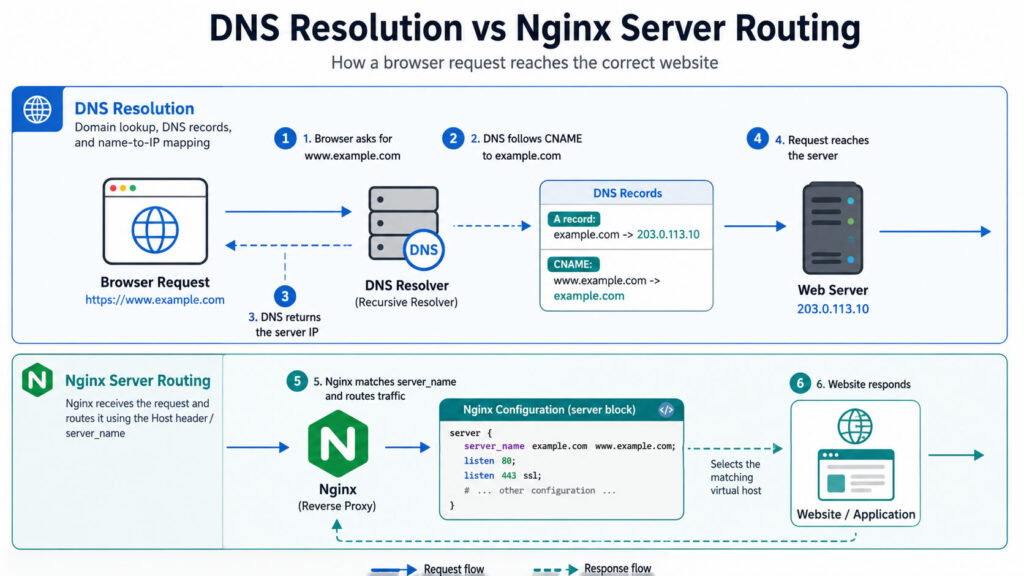
Many people assume that because:
www.example.com → CNAME → example.comthe web server automatically knows what to do with requests for www.example.com.
It doesn’t.
A CNAME only tells DNS where to send the request.
Once the request reaches your server, Nginx still needs a virtual host that explicitly handles:
www.example.comIf Nginx doesn’t have a matching server block, CloudPanel and Let’s Encrypt may not be able to validate the hostname properly.
The Solution

Create a completely separate Nginx server block for the www hostname.
This is important:
Do NOT place this inside your existing CloudPanel vHost configuration.
Create a new standalone server block.
Example:
server {
    listen 80;
    server_name www.example.com;

    return 301 https://example.com$request_uri;
}
For HTTPS, also add:
server {
    listen 443 ssl http2;
    server_name www.example.com;

    ssl_certificate /path/to/certificate.pem;
    ssl_certificate_key /path/to/private.key;

    return 301 https://example.com$request_uri;
}
Again:
This must be a separate server { } block.
Do not insert it inside an existing server block.
A common mistake is trying to add these lines inside the main vHost that already serves example.com.
That usually won’t solve the problem.
Example From My Working Configuration
For lawfirm.sabilaw.org I added:
server {
    listen 80;
    server_name www.lawfirm.sabilaw.org;

    return 301 https://lawfirm.sabilaw.org$request_uri;
}
Immediately:
- www redirects started working.
- SSL validation succeeded.
- The certificate could properly cover both hostnames.
I experienced the same result on blazehumanizer.com after creating a dedicated server block for the www hostname.
Why This Fix Works
Let’s Encrypt validates each hostname separately.
Even though DNS points both names to the same server, Nginx must still know how to handle requests for:
example.comand
www.example.comBy creating a dedicated server block, Nginx can properly answer validation requests and redirect visitors to the canonical domain.
SEO Benefits
This approach also improves SEO because all traffic is consolidated onto a single canonical domain.
For example:
www.example.com/pagebecomes:
https://example.com/pageusing a permanent 301 redirect.
This prevents duplicate-content issues and ensures search engines index only one version of your website.
If CloudPanel SSL installation keeps failing for both the root domain and the www domain, and your DNS records appear correct, check whether Nginx has a dedicated server block for the www hostname.
In my case, adding a standalone redirect server block solved:
- SSL issuance failures
- Let’s Encrypt validation problems
- www redirect issues
- Canonical domain SEO concerns
Sometimes the problem isn’t CloudPanel or DNS at all, it is simply that Nginx has no server block dedicated to handling the www hostname.